By Mitch Rice
What is Vmake AI?
Vmake AI is a browser-based AI editing tool that helps users improve video quality without turning the process into a technical chore. No downloads or software updates to worry about, just open it up on your laptop, tablet or desktop and you’re good to go.
The entire system is designed for individuals who only need to enhance video quality occasionally rather than becoming a full-on video editing whiz. It takes care of some of the most common issues, like cleaning up the footage, improving the visibility, and clarity of the visual.
Common Use Cases of Vmake AI
Main Features of Vmake
1. Vmake AI Video Enhancer
The Vmake AI Video Enhancer is among Vmake’s primary tools for anyone who wants to improve the clarity of their videos without dedicating a lot of time to manual editing. It can be a great solution for phone videos, old camera footage, or any video that has lost its quality due to compression.
What Vmake AI Video Enhancer does:
- Scales videos to 4K
- Auto fixes brightness and contrast
- Enhances sharpness and clarity
- Boosts color quality
- Keeps 30 frames per second throughout
How Vmake AI Video Enhancer works: Simply upload your video, keeping it under 200MB. The tool will go frame by frame to spot any issues. Then, it will enhance every little detail, fix blurry parts, and balance the colors throughout. The whole process is done automatically. You are not required to adjust the settings manually.
Vmake AI Video Enhancer is Best for:
- User-generated content from customers
- Old video footage that looks grainy
- Phone videos shot in poor lighting
- Social media content that needs to look professional
2. Vmake AI Video Watermark Remover
Removing watermarks usually takes time and manual effort. With Vmake’s video watermark remover, however, this is no longer the case. Vmake does all the work for you, the only thing you have to do is upload your video.
Vmake AI Video Watermark Remover features include:
- Removes static text and logos
- Removes overlays that move, including TikTok style overlays
- Removes semi transparent watermarks
- Processes most videos in less than 30 seconds
How Vmake AI Video Watermark Remover works: The tool’s algorithm analyzes each frame to find a watermark block. It then reconstructs the background where the watermark appears. For moving watermarks, Vmake AI Video Watermark Remover monitors watermark position from one frame to the next, filling in the background along the way to make the removal flawless across the entire video.
3. Vmake AI Auto Captions
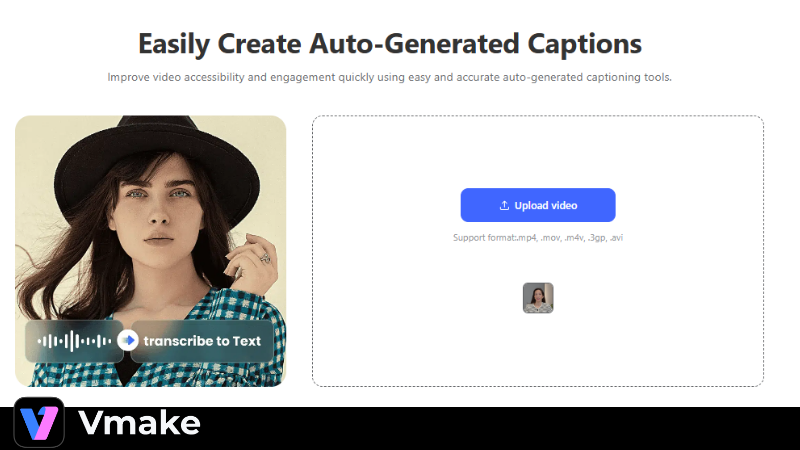
Vmake AI Auto Captions automatically turns spoken words into clear on-screen text without manual transcription. This saves creators from spending hours typing or fixing captions line by line. It works well for anyone who needs captions added fast but does not have time for extra editing work.
Language support by Vmake AI Auto Captions:
- English
- Spanish
- Portuguese
- Indonesian
- Japanese
- Korean
- Chinese
What makes Vmake AI Auto Captions useful: The AI listens to your audio and writes out the words with perfect timing. You get synced captions that match exactly when people speak. The tool supports 18+ dynamic templates designed for platforms like Instagram, TikTok, and YouTube.
Customization options of Vmake AI Auto Captions:
- Change fonts and colors
- Adjust subtitle position
- Add animations and effects
- Translate captions to other languages
- Edit text directly if the AI makes mistakes
- Export as video (with burned-in captions) or SRT file
Why people use Vmake AI Auto Captions: Social media videos with captions get 80% more engagement. Captions make your content accessible to people with hearing difficulties and those who watch without sound (which is most mobile users).
4. Vmake AI Background Remover
Vmake AI Background Remover separates the main subject from the background in a video. Once processed, you get a clean subject that can be placed on a new background or used on its own. This helps create more polished videos without needing a green screen setup.
Use cases of Vmake AI Background Remover:
- Creating green screen effects
- Changing video backgrounds
- Making professional marketing videos
- Removing distracting elements
How to use Vmake AI Background Remover: Upload your video to the Background Remover tool and get the process rolling. The system then does the magic by automatically detecting the subject and removing the background. When the processing is complete, you can view the outcome and adjust it slightly. Once you are completely satisfied, export the video with a transparent background or place it over another one.
5. Other Notable Features of Vmake AI
Vmake AI Thumbnail Generator:
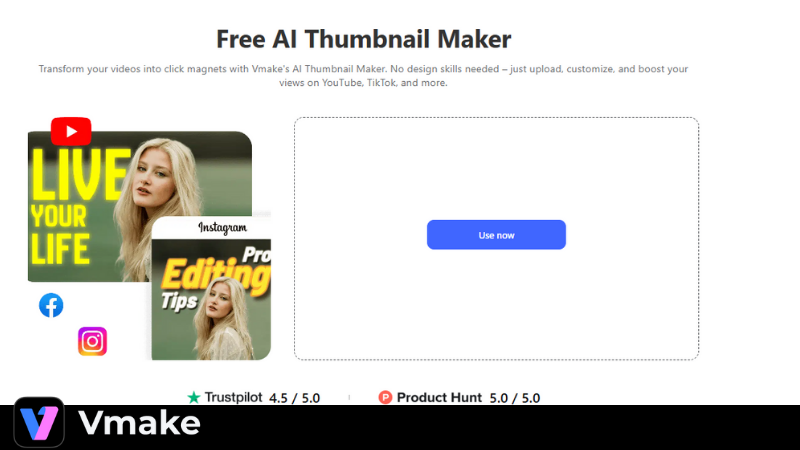
The Vmake AI Thumbnail Generator is a great tool that can help you create eye-catching thumbnail visuals for your videos and social media. It analyzes your video content to get a vibe of the overall mood and then creates thumbnails that fit your style perfectly—so you don’t have to rush to come up with a design at the last minute.
There are lots of templates available to help you get started, and you can put words down wherever you want without any trouble. Want to spotlight something important or make your message pop? No problem. You get thumbnails that look like you planned them, even if you’ve never touched a design tool in your life.
Vmake AI Noise Reduction:
Do you ever make a perfect video only to find out that the audio is noisy and filled with unwanted sounds? It can be anything from the traffic noise outside, people talking, or simply a mic that is letting you down. In such cases, Vmake’s noise reduction feature is the one to rely on.
Vmake’s noise reduction tool focuses on improving audio quality in videos recorded in imperfect environments. It removes unwanted background sounds so voices come through more clearly and feel easier to listen to.
Vmake AI Video Generation:
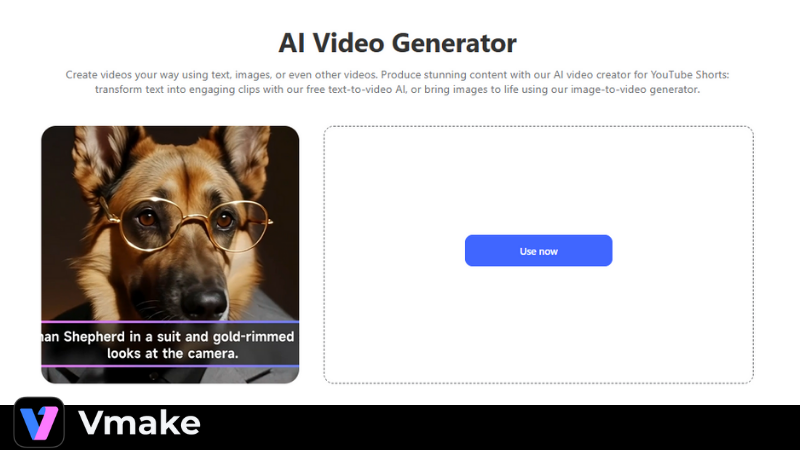
Vmake AI Video Generation feature allows users to create videos using text prompts or simple image inputs. This makes it possible to produce basic marketing or product videos without filming new footage.
It works well for fast content creation when time or resources are limited. The tool helps turn ideas into usable video assets that can support ads, product pages, or social posts.
Tips for Getting the Best Results
- Start with the best source quality possible. AI can improve videos, but can’t create details that don’t exist.
- Test with one video first. Use the preview feature before processing multiple videos.
- Use the right resolution. Don’t upscale to 4K if you only need HD – it uses more credits.
- Compress large files before uploading. If your video is over 200MB, use a compressor first.
- Check subtitle accuracy. Auto captions are about 95% accurate – always review and edit before publishing.
- Shoot better footage when possible. Enhancement is great for rescue work, but good original footage is always better.
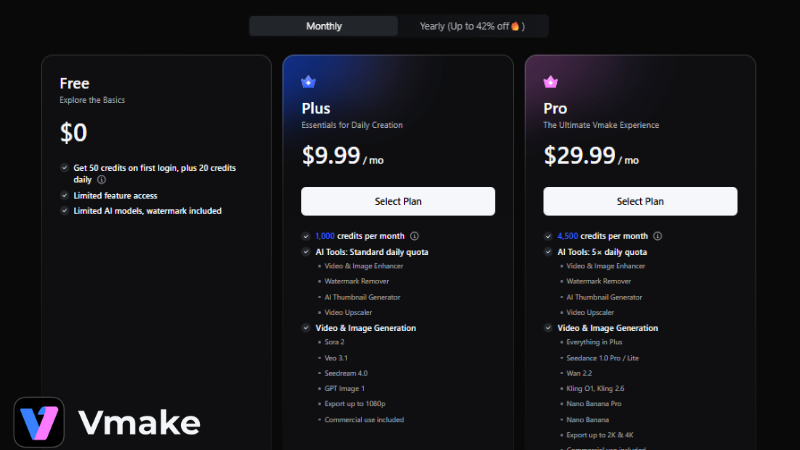
Pricing and Plans
Is Vmake Safe?
Yes, Vmake is safe for personal and commercial use. The platform:
- Uses GDPR-compliant servers
- Stores videos for only 7 days
- Employs standard security measures
- Has clear privacy policies
As with any online service, don’t upload extremely sensitive content without considering the risks.
Bottom Line
Vmake can be a great option for individuals who need QUICK video tweaks without learning complicated technology. Not only does it save several hours of manual effort with the auto features, but the quality produced is quite astonishing. Moreover, the tool improves its features with regular updates. The recent addition of AI hooks and thumbnail generators shows Vmake is adapting to creator needs.
Data and information are provided for informational purposes only, and are not intended for investment or other purposes.