

If you want to transfer music from iTunes to iPhone XS (Max), there’s some information that you need to have. In this article, we’ll show you how to transfer music from computer to iPhone using a number of different methods, both with and without iTunes.
Do you have music in your iTunes library that you want to transfer to your new iPhone XS (Max)? There are a number of different methods by which to transfer music from iTunes to iPhone XS, however, some of those methods can be complicated and risky as well. If you want to transfer to new iPhone, we’ll show you how to transfer music from computer to iPhone using a number of different methods.

Part 1: How to Transfer Music from Computer to iPhone XS (Max) using iTunes
Method 1: Sync music from iTunes to iPhone XS (Max) Directly
- Launch the latest updated iTunes in your computer and connect your iPhone to the computer via a USB cable.
If you don’t currently have music in your iTunes library, you need to import them. Click on File > Add File to Library. You’ll be able to select songs from your computer and add them to the library.
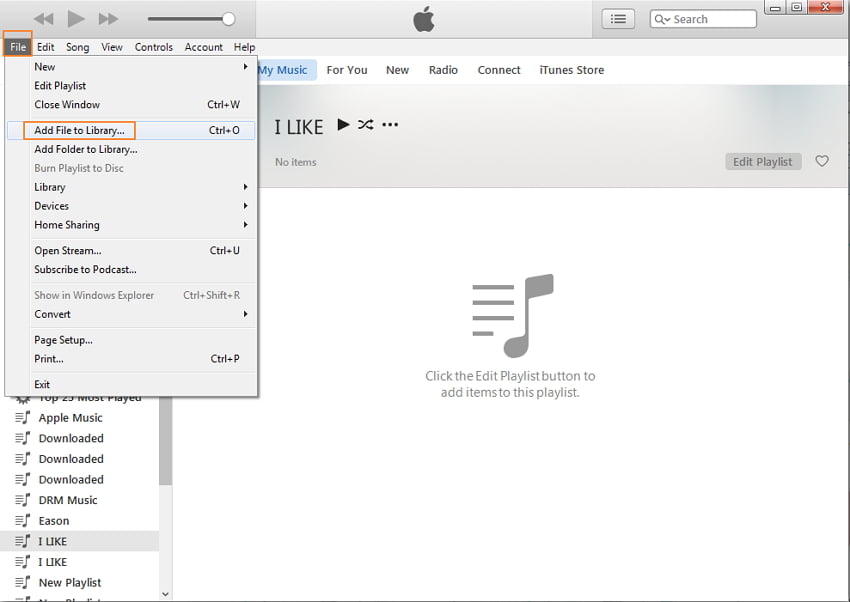
3. Select your iPhone from the Devices category and then click on the ‘Music’ option.
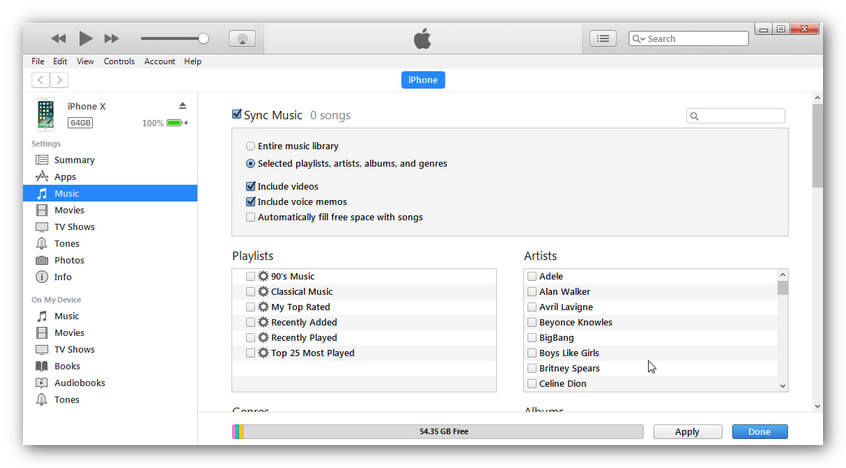
4. Click on ‘Sync Music’ and select the type, genre, artists, or albums to transfer to new iPhone. You can also select the music files specifically.
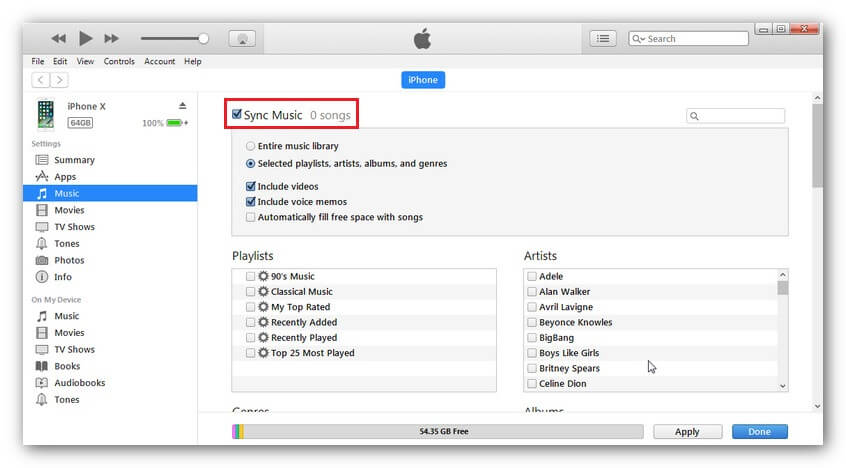
5. Click on the ‘Apply’ button to start transferring music from iTunes to iPhone XS (Max).
Method 2: Sync music from iTunes to iPhone XS (Max) Manually
- Launch the latest updated iTunes in your computer and connect your iPhone to the computer via a USB cable.
2. Select your iPhone from the ‘Device’ button.

3. Click on ‘Manually manage music and videos’.
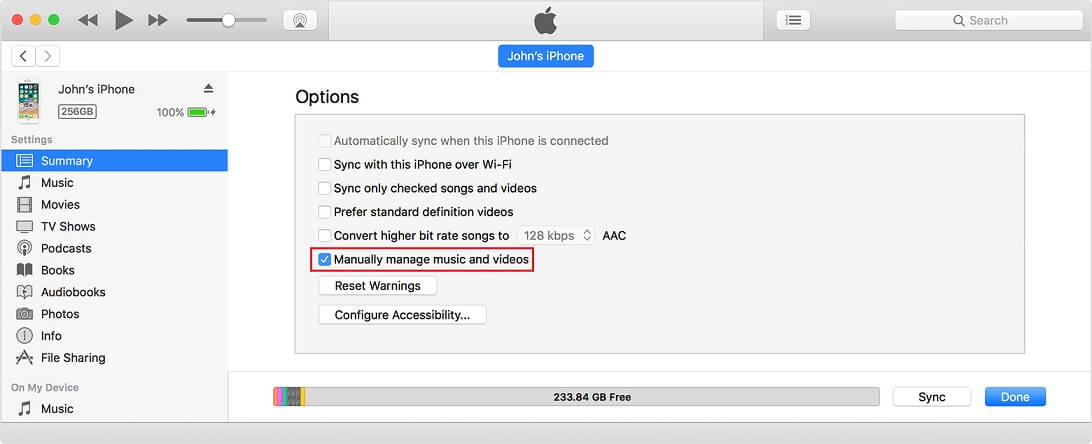
4. From the left-hand panel, select the ‘Music’ option and then manually drag and drop files from your computer to iTunes.
Drawbacks of using iTunes:
- The process is complicated and often confusing. Trying to sync a large number of files is also extremely slow and frustrating, and it may also lead to a crash.
- Sometimes, when you try to transfer music from iTunes to iPhone, all your iPhone’s current music gets replaced by the new music. As such, you’ll get the new music, but you’ll lose all the music you currently held in your iPhone.
- This method is prone to flashing an error that says ‘iPhone could not sync because the connection to the iPhone was reset’. In addition to this, you can receive a number of different errors if your data cable is slightly disconnected, if your iPhone is locked, or for other reasons.
- iTunes takes up a lot of energy so your computer’s processes slow down while you’re transferring.
Part 2: How to Transfer Music from Computer to iPhone XS (Max) without iTunes
If you want to avoid all of the problems and hassles associated with using iTunes, you can transfer music from computer to iPhone XS (Max) without iTunes using dr.fone – Transfer. This is an extremely efficient method that leads to no data loss and it takes only a few seconds. dr.fone – Transfer is a toolkit that’s been rolled out by the world’s leading technology enterprise Wondershare. As such, it’s completely reliable to use.
Transfer music from computer to iPhone XS (Max) without iTunes.
- Can transfer music from computer to iPhone easily.
- Can also manage and export/import the music file.
- In addition to music, can also transfer photos, contacts, SMS, and other data.
- Works with iPhone XS, iPhone XS Max, or iPhone XR and all other iPhone models.
- Works with all iOS versions and all Windows and Mac OS versions.
- Also compatible with Android devices.
- Extremely high data transfer speed.
How to Transfer Music from Computer to iPhone XS (Max) using dr.fone – Transfer:
- Download and install dr.fone toolkit and then launch it.
2. Select the ‘Transfer’ option from the main menu and then connect your iPhone to the computer using a data cable.

3. Wait for dr.fone to detect your iPhone and then click on the ‘Transfer iTunes Media to Device’ option.

4. dr.fone will scan all of the media files in your iTunes and then you’ll find them listed out. Select the music files you want to transfer and then click on ‘Transfer’.

Conclusion
In this article, we’ve shown you how to transfer music from computer to iPhone using iTunes and using dr.fone. As you’ve probably already read, using iTunes directly posits a lot of disadvantages, some of which can lead to errors and the complete deletion of your iPhone library. As such, our personal recommendation is to use dr.fone – Transfer as all your music files (both in your iTunes and iPhone) remain completely secure. Furthermore, it’s user-friendly, efficient, and transfers music files a lot faster than iTunes.
If you have any other questions about how to transfer music from computer to iPhone, feel free to let us know.